
Can LinkedIn Posts Be Scheduled? Yes, and Here's Exactly How

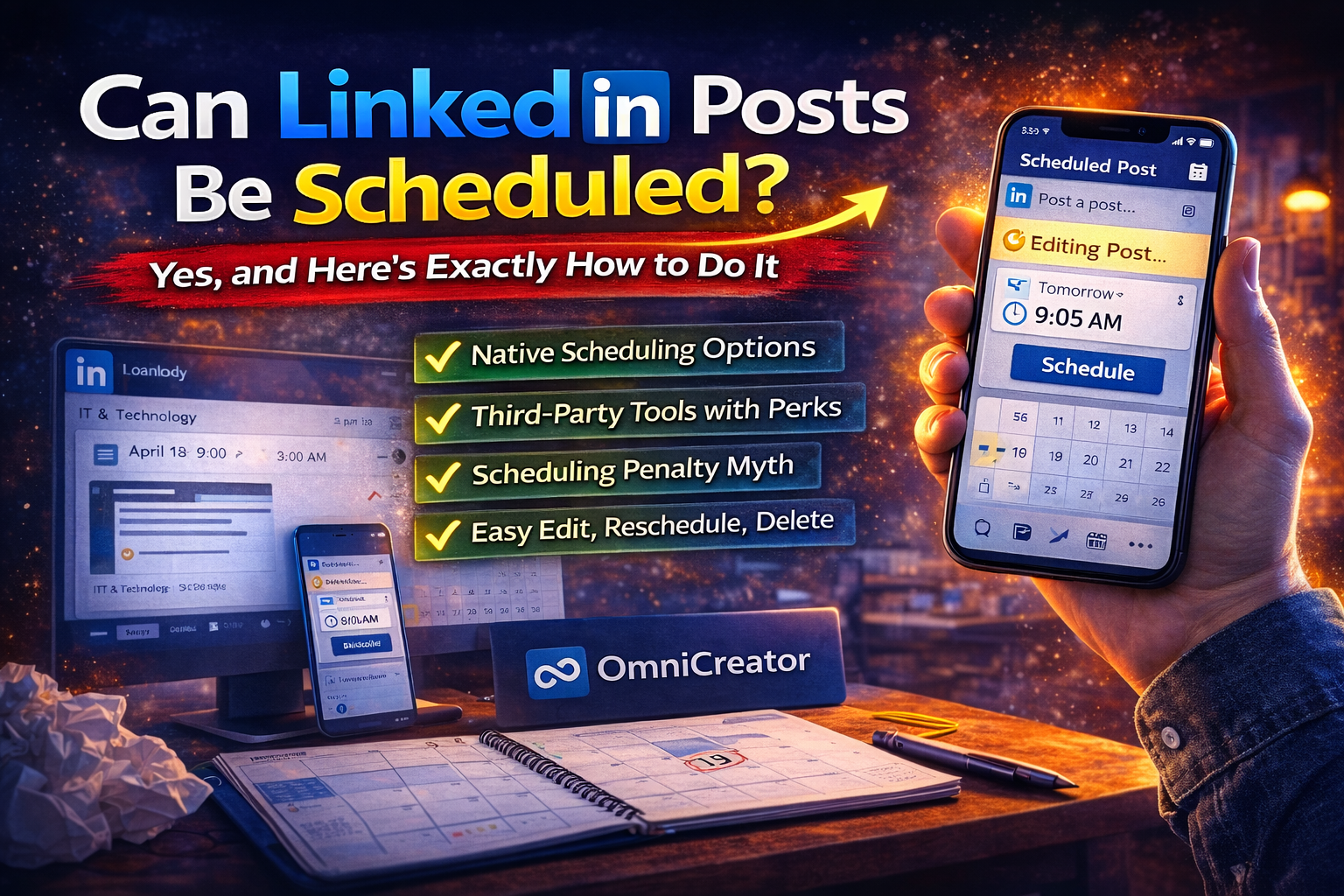
If you've been wondering whether LinkedIn posts can be scheduled, the answer is yes.
And once you start doing it, you'll wonder how you ever managed without it.
I've been posting on LinkedIn for years and grew my audience past 30,000 followers.
The biggest workflow shift wasn't about what I posted.
It was when I stopped posting manually.
Setting an alarm, opening LinkedIn half-awake, typing something under pressure, hitting publish, and immediately worrying about typos.
That's not a content strategy. That's hoping for the best.
Scheduling changed that.
Now I batch a week of content in one focused session, review everything before it goes live, and show up consistently whether or not Monday morning feels inspiring.
In this guide I'll cover:
- How scheduling works on LinkedIn
- What the native tool can and can't do
- How third-party tools fill the gaps
- And the one concern about scheduled posts that everyone seems to have strong opinions about…
Is There a Way to Schedule Posts on LinkedIn?
Yes. LinkedIn has a built-in scheduling feature available on both desktop and mobile, and it works for personal profiles and company pages.
You can also schedule through any third-party tool that connects via LinkedIn's official API.
Native LinkedIn scheduling on desktop:
- Open LinkedIn on desktop and click "Start a post"
- Write your content and add any media
- Click the clock icon next to the blue Post button
- Choose your date and time
- Click Schedule. Done.
On mobile the process is identical. Open the post composer, tap the clock icon before hitting publish, select your time, and schedule. LinkedIn handles the rest.
For company pages, you'll need admin or editor access.
The scheduling interface is the same. Clock icon in the composer, pick a time, confirm. LinkedIn publishes to the page automatically at the scheduled time.
Where to find scheduled posts on LinkedIn:
Go to your profile, click Posts, then select "Scheduled" from the filter options. Your queued posts appear there, with options to edit, reschedule, or delete each one. On mobile, tap your profile photo in the top left, navigate to your profile, tap Posts, then filter to Scheduled.
Is It Good to Schedule Posts on LinkedIn?
Scheduling is good for your LinkedIn growth, with one caveat worth understanding.
Posts scheduled through LinkedIn's native tool or through API-compliant third-party tools perform identically to manually published posts.
The concern you'll see floating around applies specifically to tools that use non-approved automation methods, not to scheduling itself.
LinkedIn algorithm researcher Richard van der Blom published data suggesting certain scheduled posts saw reduced initial reach.
The detail that gets lost when people share this: The issue is with how specific tools connect to LinkedIn, not with the act of scheduling.
Tools that use Chrome extensions or browser-based automation to mimic human behavior are operating outside LinkedIn's Terms of Service.
That's the risk.
A native scheduler or an API-connected tool like OmniCreator doesn't trigger this.
The practical upside of scheduling is real regardless.
You write when you're focused, publish when your audience is active, and maintain a consistent presence without depending on daily motivation.
Consistency is one of the highest-leverage things you can do on LinkedIn.
Scheduling is how most people sustain it without burning out. (Waking up every morning and trying to be insightful on demand is, objectively, a terrible content strategy.)
How to Schedule LinkedIn Posts for Free
LinkedIn's native scheduler is completely free and handles the basics well.
Here's the full process for both personal posts and company pages.
Scheduling personal posts
- Go to linkedin.com on desktop and click "Start a post"
- Write your post content and add any images, videos, or documents
- Click the clock icon in the bottom toolbar of the composer
- Select a date and time from the scheduling popup
- Click "Schedule" to confirm
LinkedIn will show a confirmation that the post is scheduled, and it'll sit in your queue until the selected time. No further action needed.
Scheduling company page posts
- Navigate to your company page on LinkedIn
- Click "Start a post" from the company page feed
- Write and format your content
- Click the clock icon and select your scheduled time
- Click Schedule
You'll need admin or editor access to the company page. Super admins, content admins, and editors can all schedule posts.
What the native tool doesn't give you:
There's no calendar view to visualize your schedule, no bulk scheduling if you want to plan two weeks at once, no analytics on post performance, and no media library to reuse past content.
For many people starting out, the native tool is enough. For anyone building a consistent content presence, those missing pieces start to add up.
Can LinkedIn Posts Be Scheduled Through a Third-Party Tool?
Yes. Any tool that connects to LinkedIn via the official API can schedule posts on your behalf.
This includes Buffer, Later, Hootsuite, and OmniCreator, among others.
The key distinction is how the tool connects, and this is where it's worth being careful.
Tools that require your LinkedIn password, use Chrome extensions to interact with LinkedIn directly, or simulate human browsing behavior are operating outside LinkedIn's Terms of Service.
These are the tools that create account risk.
Scheduling via an API-compliant tool carries none of that risk.
It's the same connection method LinkedIn expects and approves for third-party software.
For a full breakdown of which scheduling tools are worth using, our guide to the best LinkedIn scheduling tools covers the options in detail.
What matters here is understanding that scheduling itself isn't the issue. It's the method.
What OmniCreator Adds That LinkedIn's Native Scheduler Skips
OmniCreator connects to LinkedIn through the official API, so everything is compliant and your account is safe.
Beyond that, it's built to solve the workflow problems that native scheduling leaves open.
A content calendar that makes sense
See your full week or month of scheduled posts in one view.
Spot gaps, move things around, and make sure you're not posting three similar topics back to back. The native tool has no calendar.
You're essentially scheduling blind.
A media library with memory
Every image, video, and document you've used gets stored in a searchable cloud library. Want to reuse that graphic from three months ago?
It's right there.
Most scheduling tools publish and forget.
OmniCreator keeps everything, which matters more than it sounds once you've spent ten minutes hunting through your downloads folder for a logo you've already uploaded four times.
Real community engagement
Instead of automation bots, OmniCreator has a community of actual LinkedIn creators who engage with each other's content genuinely.
No "Great insights!" comments from accounts with stock photo avatars.
Real people reading real posts and engaging because they found something useful.
An AI interviewer (Starlog) that sounds like you
When you don't know what to write, Starlog asks you questions.
You answer in your own words.
It turns your answers into a post that sounds like you wrote it, because you did.
No generic ChatGPT energy, no bullet points about leveraging synergies.
A Proofread feature that catches problems before LinkedIn does
Click Proofread with a draft open and get LinkedIn-specific feedback in seconds.
Is the hook strong enough?
Does the formatting hold up on mobile?
Hit Optimize and the changes apply automatically.
It's the difference between editing before you publish and panic-editing after you already have traction.
All of this at $20/month.
For comparison, Taplio runs up to $199/month.
OmniCreator is built for the solopreneur or creator who wants a professional LinkedIn workflow without paying for a feature set they'll use 20% of.
Why LinkedIn Scheduled Posts Sometimes Don't Show Up
If your scheduled post isn't appearing where you expect it, one of a few things is usually happening.
- You're looking at the wrong account.
- The post wasn't fully confirmed.
- The filter isn't set to "Scheduled."
- You used a third-party tool.
Posts scheduled through third-party tools won't appear in LinkedIn's native scheduled posts queue. They're managed entirely within the tool's own dashboard. If you scheduled through OmniCreator, check your OmniCreator calendar rather than LinkedIn directly.
Is There a Way to Automate LinkedIn Posts?
Scheduling and automation are different things, and the distinction matters for your account health.
Scheduling means you write the post yourself, set a time, and a tool publishes it for you at that time.
You're in control of every word.
The tool is just a clock.
Automation typically refers to tools that take action on LinkedIn without your direct input: -
- Sending connection requests at scale
- Auto-liking posts
- Generating and publishing content without your review
- Simulating human interaction through browser-based scripts.
This is the category that violates LinkedIn's Terms of Service and puts accounts at risk.
Start Scheduling. Then Improve What You're Scheduling.
LinkedIn posts can be scheduled, the native tool is free, and using a compliant scheduler carries no algorithmic penalty.
If you haven't started scheduling yet, that's the first move.
The next step is making sure what you're scheduling is worth the slot.
Consistency without quality just gets you consistently ignored.
OmniCreator's Proofread feature reviews your drafts before they go live, checking hook strength, mobile formatting, and structure, so you're not just publishing on time.
You're publishing posts worth reading.