
LinkedIn Content Management (Without the 47-Tab Notion Dashboard Nobody Uses)

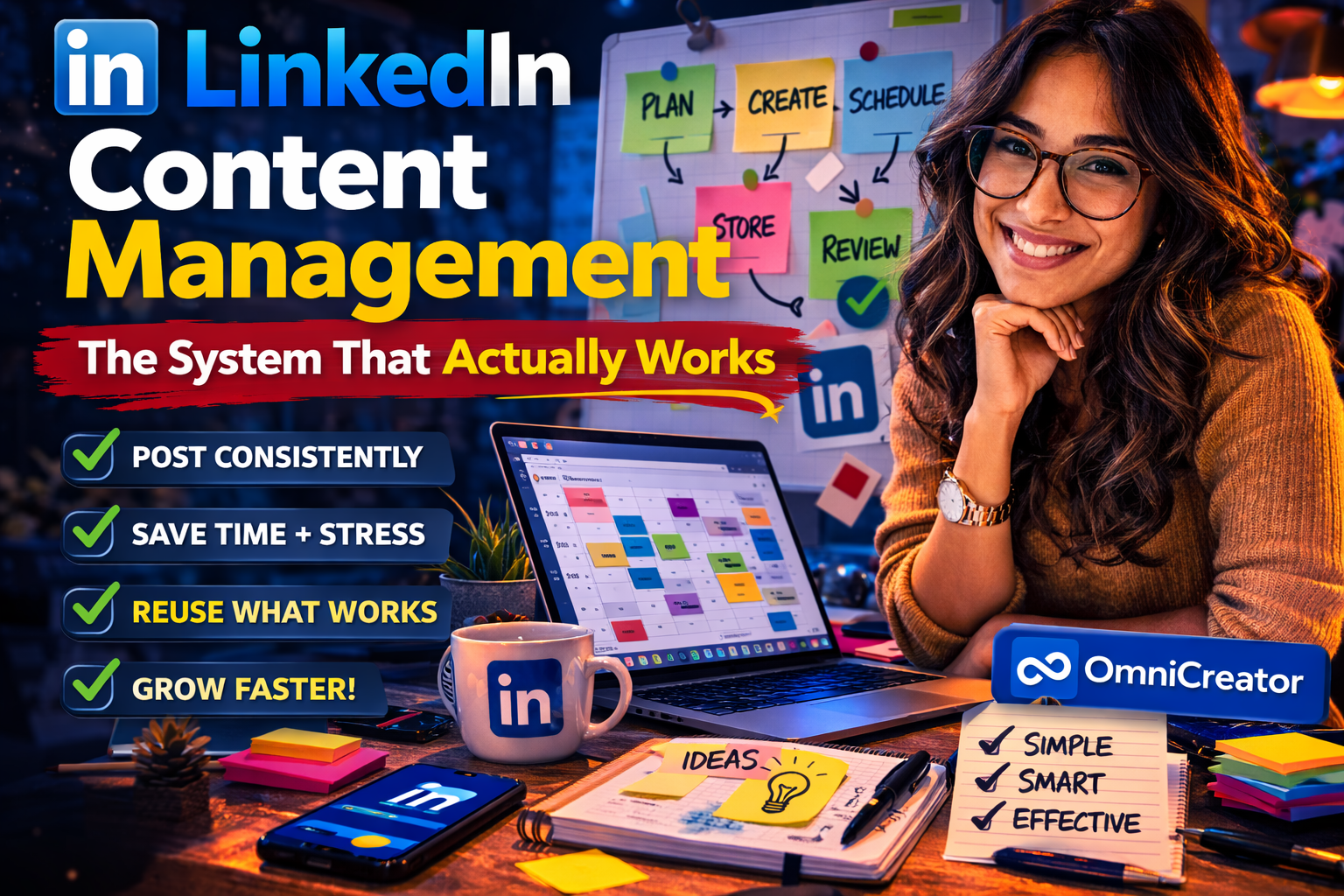
Most LinkedIn advice treats content management like a creativity problem.
"Post more."
"Batch your content."
"Use AI to generate 30 days of posts in one afternoon."
But the people who struggle with LinkedIn content management aren't struggling because they lack ideas.
They're struggling because they have no system.
Posts live in five different places.
Captions get drafted in the Notes app and never scheduled.
That graphic from last quarter that performed well?
Gone…
Somewhere in a downloads folder between a tax document and a screenshot they forgot to delete.
In this guide I'll cover what a real LinkedIn content management system looks like:
- Which content frameworks are worth using
- What most people get wrong about media storage
- How to build a loop you'll maintain past the first two enthusiastic weeks
What Is LinkedIn Content Management?
Most people think content management means posting more often.
It doesn't.
LinkedIn content management is the difference between showing up consistently for a year and ghosting your audience every six weeks because the process got too heavy to carry.
A real system has five components:
- Content calendar
- Drafting process
- Scheduling tool
- Media library
- Some basic way to see what's working
Not five different apps.
Not a color-coded Notion dashboard with seventeen linked databases.
Something simple enough that you'll open it on a Tuesday when you're tired and behind on three other things.
That last part is the whole game.
A system you'll use when you don't feel like it beats a perfect system you abandon when life gets busy.
What Are the Best Frameworks for LinkedIn Content?
Two frameworks come up constantly in LinkedIn content strategy conversations, and both are worth understanding before you build your system.
The 5-3-2 Rule
The 5-3-2 rule says that for every 10 posts, five should be curated content from others in your industry, three should be original content you created, and two should be personal or behind-the-scenes posts.
The logic is straightforward: audiences trust creators who share and engage with others' work, not just broadcast their own. Showing up in someone else's comments section is content management too.
Most people just don't think of it that way.
The 3-2-1 Rule
The 3-2-1 rule is a simplified weekly version: three educational posts, two engagement posts (questions, polls, opinions), and one promotional post per week. It's a useful starting point for anyone who tends to either over-promote or under-promote.
Neither rule is law.
But if your last ten posts were all about your services, both frameworks are quietly suggesting you recalibrate.
Why Is a Media Library the Most Overlooked Part of Content Management?
A media library is where every image, video, carousel, and post asset you've created lives in one searchable place.
Most LinkedIn creators don't have one.
They have a vague collection of folders, a phone camera roll, and a lot of optimism.
Ask anyone who's been posting on LinkedIn for more than a year about their biggest workflow headache and it's almost always the same answer…
…finding old content.
You posted something six months ago that performed well.
You want to repurpose it.
And you spend twenty minutes scrolling through your profile, digging through Google Drive, opening old Slack messages, checking your camera roll, before giving up and starting from scratch.
This is a storage problem masquerading as a creativity problem.
Adding a proper media library to the workflow is consistently the single change that saves the most time.
Repurposing a top-performing post from last quarter goes from a twenty-minute archaeology expedition to a two-minute exercise.
Not scattered across three cloud drives.
Not buried in your phone.
One place, everything searchable.
How Do You Build a Realistic LinkedIn Content System?
Here's the system that survives contact with a real week, without the parts that only work if your life is a productivity influencer's highlight reel.
One drafting session per week.
Not daily.
One focused block, usually Sunday or Monday, where you write everything you plan to post that week.
Some weeks it's three posts. Some weeks it's two.
The goal is to stop making content decisions when you're already behind on everything else.
If you're stuck on what to write, our guide on how to write a LinkedIn post that sounds like you is a good place to start.
Schedule everything immediately.
No drafts sitting in Notes.
No "I'll do it later."
Later is where posts go to die.
It's written, it's scheduled, it's done.
Save every asset to the media library before closing the tab.
Takes two weeks to become automatic.
After that you stop losing things entirely, which is a more significant quality of life improvement than it sounds.
Review performance once a month.
Not weekly. Not after every post.
Once a month, check which posts got reach, what the engagement looked like, and whether there's a pattern worth repeating.
That's it.
No elaborate setup.
No recurring Sunday anxiety about your content calendar.
Just a loop that runs even on the weeks when running it is the last thing you feel like doing.
How Does OmniCreator Help With LinkedIn Content Management?
OmniCreator is built around this exact workflow.
It's the tool I use for my own LinkedIn content management, which is probably the most honest endorsement I can give anything.
The scheduling calendar gives you a week or month view of everything queued, so you can spot gaps and avoid posting the same angle twice in a row.
LinkedIn's native scheduler has no calendar view at all.
You're picking times without seeing what else is queued, which is a reliable way to accidentally run three posts about the same topic back to back.
The media library stores every asset you've ever uploaded, searchable, organized, accessible from any device.
No hunting through folders.
No re-uploading a logo you've already used four times because you can't find the original.
Starlog (the AI interviewer) asks you questions and turns your answers into a draft that sounds like you, not like a ChatGPT summary of your LinkedIn about section.
You talk, it structures.
The post sounds like you because it came from you.
The Proofread feature reviews your draft before it goes live, checking hook strength, mobile formatting, and structure, then applies improvements automatically when you hit Optimize.
It's the difference between fixing a weak opening before anyone sees it and noticing the problem three hours later when you've already got comments coming in.
All of this at $20/month.
If you want to see how they stack up, we broke it down in our comparison of LinkedIn scheduling tools and Taplio alternatives.
Build the System First. The Content Will Follow.
The creators who stay consistent on LinkedIn for years don't have more discipline than everyone else.
They have a system that doesn't require discipline to maintain.
Start with the basics: a weekly drafting session, a scheduling tool, and somewhere to store your assets.
Get that loop running.
The quality of your content improves naturally once you stop spending energy on logistics.
If you want a tool built for exactly this kind of simple, sustainable LinkedIn content management, OmniCreator is worth a try.
Seven days free, no credit card required.